About This Article
This article was created using an automated generation workflow leveraging generative AI.papanda925 Character Sheet v1Implementing a landscape page-switching version that switches page by page from JSON and a smartphone vertical-reading version that arranges the same images sequentially from top to bottom in Daily-Code-Samples, using 4 manga images unified with the character's definitive source, to compare the differences in display methods.Verification Status: 🧪 Implemented on GitHub, JavaScript/JSON/public safety checks passed, GitHub Pages build completed, smartphone physical device display unconfirmed
When presenting manga on the web, placing a single long image vertically as-is is the simplest approach.
However, this time we will deliberately go one step further.
A landscape viewer that switches page by page using Previous and Next buttons and a vertical-reading viewer that allows reading by simply scrolling down on a smartphone were created using the same 4 image datasets.
No specialized manga libraries are used.
All you need is HTML, CSS, JavaScript, JSON, and the manga images.
- Try It First
- The 4 Manga Images Used This Time
- Papanda's Definitive Source is Character Sheet v1
- Overview
- File Structure of the Landscape Version
- within it is dynamically replaced using JavaScript.
- Reading JSON with fetch()
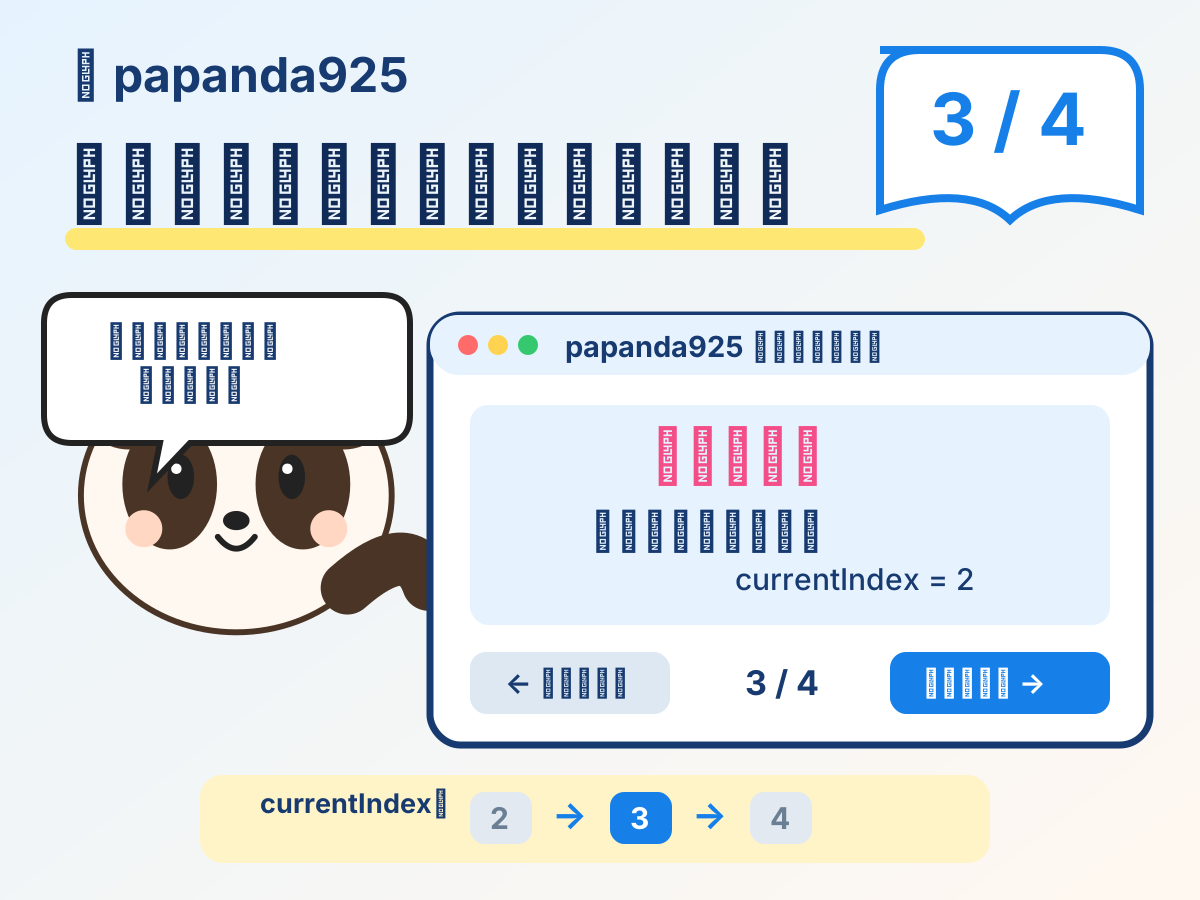
- Managing the Current Page with currentIndex
- Updating Images and Metadata Together with renderPage()
- Using the Same Function for Previous and Next
- Reading via Left/Right Keys on PCs
- What is Different in the Smartphone Vertical-Reading Version?
- Building All Pages with forEach() in the Vertical-Reading Version
- Using Lazy Loading in the Vertical-Reading Version
- Comparing the Landscape and Vertical-Reading Versions
- Exploring All Code and Images on GitHub
- Publishing on GitHub Pages
- Features Intentionally Omitted This Time
- Conclusion
- Reference Links
Try It First
The sample for this project is published on GitHub Pages.
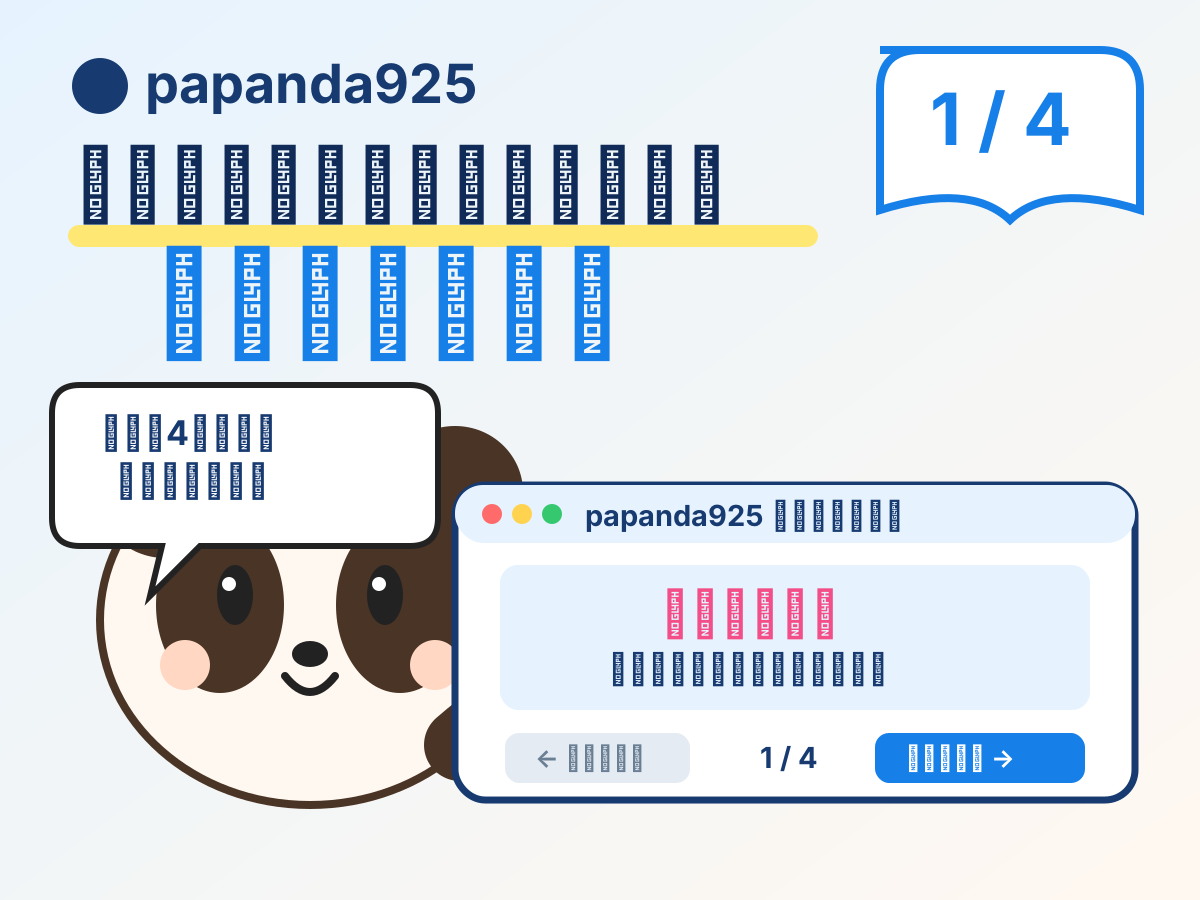
In the landscape version, pressing the Next Page button updates 1 / 4 → 2 / 4 → 3 / 4 → 4 / 4 the display accordingly.
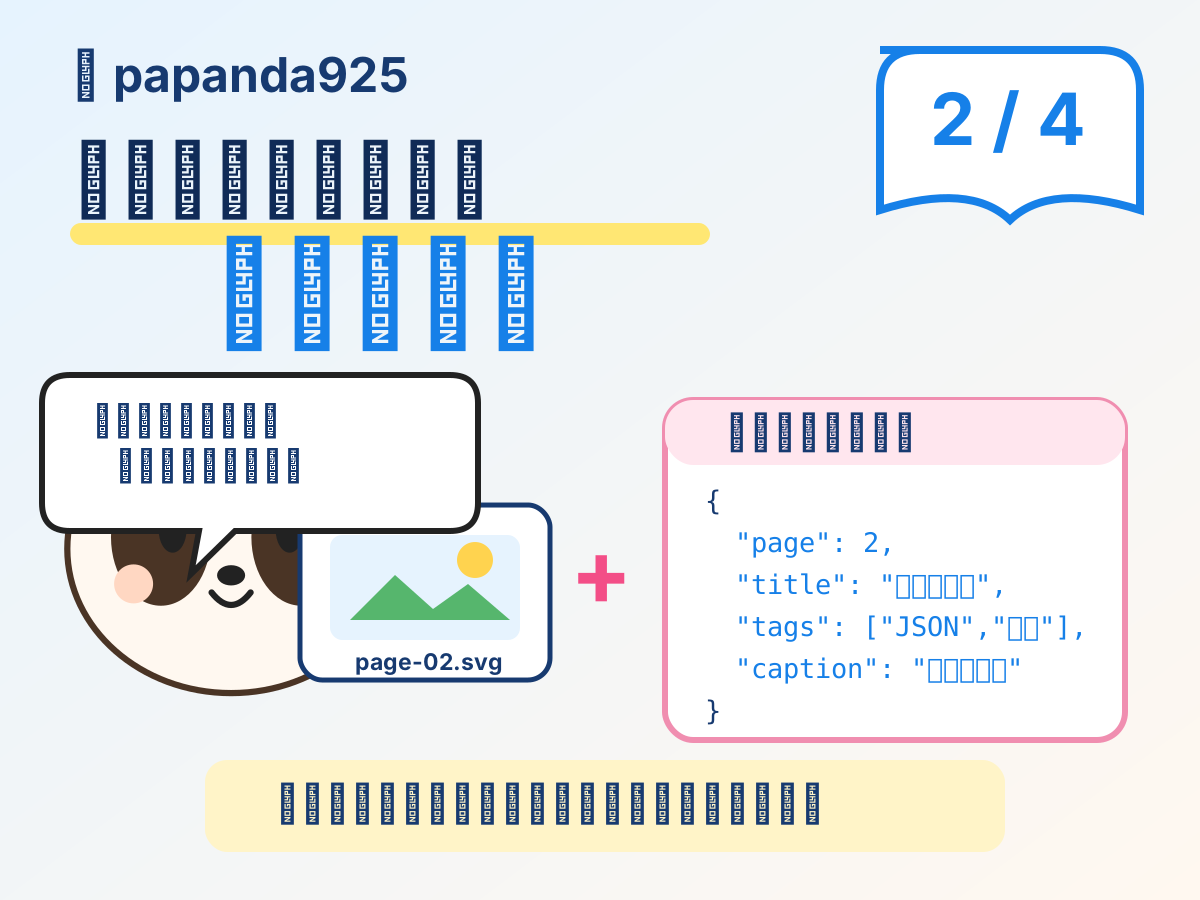
It is not just about the images. Titles, descriptions, and tags also switch together as data specific to that page.
In the vertical-reading version, the same four images are arranged sequentially from top to bottom. Instead of using a Next button, users simply scroll down to read on smartphones.
The 4 Manga Images Used This Time
Currently standardized to Papanda based on papanda925 Character Sheet v1.
1 / 4 — Switching pages in the browser
2 / 4 — Separating images from associated metadata
3 / 4 — Switching pages with Previous and Next
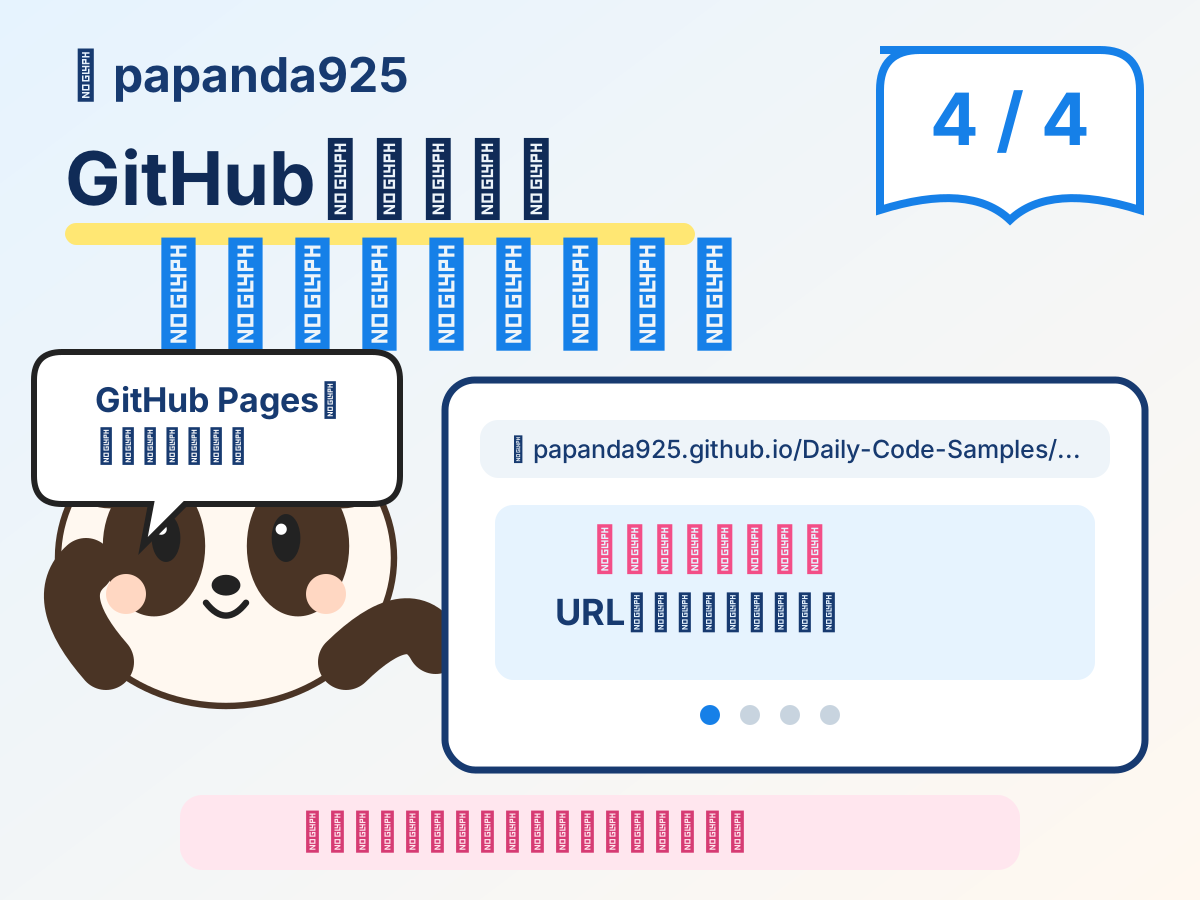
4 / 4 — Publishing on GitHub Pages
Explanatory images for the smartphone vertical-reading version have also been prepared.
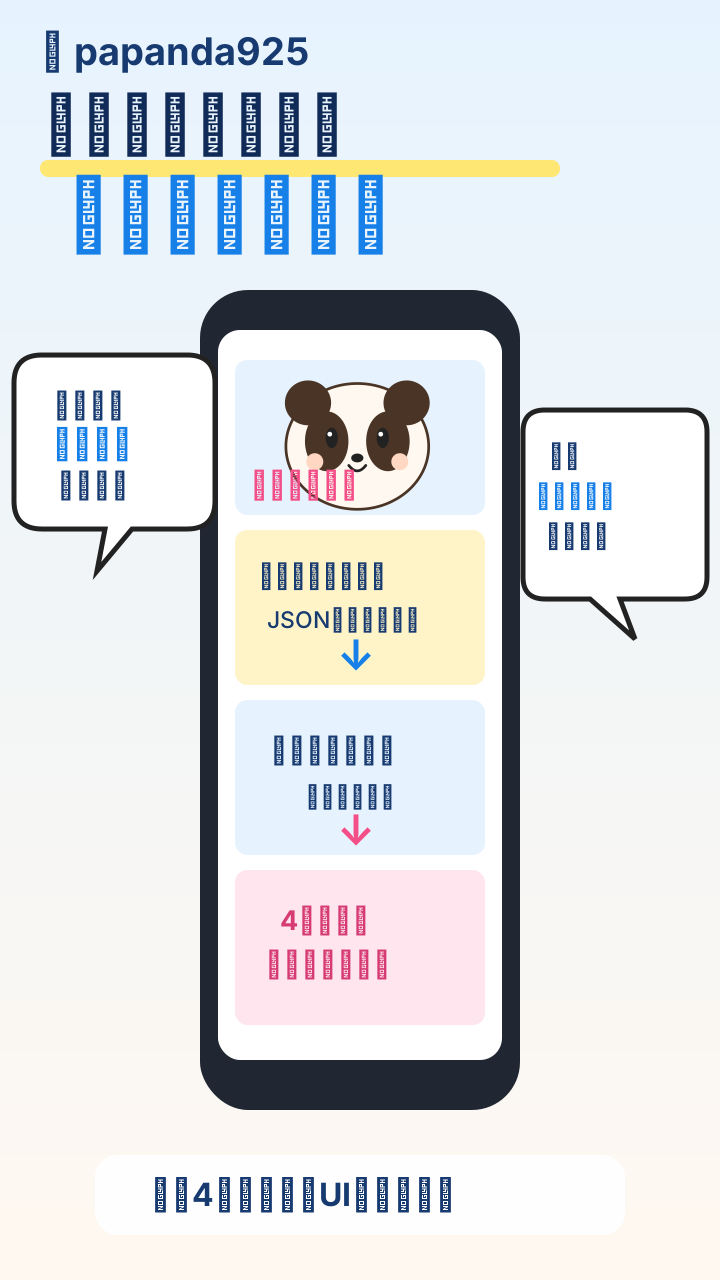
Papanda's Definitive Source is Character Sheet v1
Starting from this edition, rather than deciding Papanda's appearance on the fly for each article, we have decided to treat Character Sheet v1 as the definitive source.
The baseline is defined by characteristics such as the following:
The face is not a true circle, but a slightly wide and soft contour.
The face and belly are a creamy white.
Ears, eye areas, limbs, and tail are dark brown rather than pure black.
Large, glossy eyes.
Light pink cheeks.
A small mouth.
A cute anime chibi style, approximately 2 to 3 heads tall.
Core expressions are thinking, surprised, and explaining/happy.
To allow these criteria to be reused in text as well, we placed CHARACTER_SOURCE.md on GitHub.
When adding more manga images in the future, referencing this source will help reduce inconsistencies where the panda looks different across articles.
Overview
The key point this time is separating the manga images themselves from how they are presented.
flowchart TD
    A[4枚のSVG画像] --> B[manga.json / manga-vertical.json]
    B --> C{表示方法}
    C --> D[横向き版]
    C --> E[スマホ縦読み版]
    D --> F[currentIndexで1枚を選ぶ]
    F --> G[前へ / 次へで差し替える]
    E --> H[全ページを順番にDOMへ追加]
    H --> I[下へスクロールして読む]
Even when using the same images, changing the presentation method on the JavaScript side allows for different reading experiences.
This was the most interesting part of this experiment.
File Structure of the Landscape Version
docs/demos/papanda-manga-viewer/
├── index.html
├── style.css
├── app.js
├── manga.json
└── pages/
    ├── page-01.svg
    ├── page-02.svg
    ├── page-03.svg
    └── page-04.svg
This does not mean creating HTML files for 4 pages.There is only a single HTML screen
.<img> The reference destination of
within it is dynamically replaced using JavaScript.
manga.jsonManaging Images and Metadata via JSON
{
  "image": "./pages/page-02.svg",
  "alt": "2ページ目。Papandaが画像と付帯データを分けて管理する考え方を紹介するイラスト",
  "title": "2ページ目:画像と付帯データを分けて持つ",
  "caption": "画像パスだけでなく、タイトル・説明・タグもJSONから取得します。",
  "tags": ["JSON", "メタデータ", "付帯データ"]
}
uses JSON to hold not only image paths but also information associated with each page.
For simple page switching, writing four image names directly into JavaScript would work.However, JSON was separated so that images and display metadata could be treated as a unified data set per page.
Reading JSON with fetch()
Page information is loaded using fetch(). We check
fetch('./manga.json')
  .then((response) => {
    if (!response.ok) {
      throw new Error(`HTTP ${response.status}`);
    }
    return response.json();
  })
  .then((data) => {
    if (!Array.isArray(data.pages) || data.pages.length === 0) {
      throw new Error('pages が空、または配列ではありません');
    }

    pages = data.pages;
    renderPage();
  })
  .catch((error) => {
    status.textContent =
      `マンガデータを読み込めませんでした: ${error.message}`;
  });
response.ok and further verify whether pages exists as an array.
Managing the Current Page with currentIndex
This is the core of the landscape version.
let pages = [];
let currentIndex = 0;
Since arrays start at 0, 4 pages are handled as follows:
currentIndex = 0 → 1ページ目
currentIndex = 1 → 2ページ目
currentIndex = 2 → 3ページ目
currentIndex = 3 → 4ページ目
On the screen, this is converted to human-readable
`${currentIndex + 1} / ${pages.length}`
formats like 1 / 4.
Updating Images and Metadata Together with renderPage()
function renderPage() {
  const page = pages[currentIndex];
  if (!page) return;

  image.src = page.image;
  image.alt = page.alt ?? '';
  counter.textContent = `${currentIndex + 1} / ${pages.length}`;
  title.textContent = page.title ?? '';
  caption.textContent = page.caption ?? '';
}
The core consists of the following single line.
image.src = page.image;
Simply changing <img> of the same src element switches to a different manga image.
Using the Same Function for Previous and Next
function movePage(step) {
  const nextIndex = currentIndex + step;

  if (nextIndex < 0 || nextIndex >= pages.length) {
    return;
  }

  currentIndex = nextIndex;
  renderPage();
}
For next, movePage(1); for previous, movePage(-1).
Buttons are disabled at the edges of the screen to prevent navigating out of bounds.
prevButton.disabled = currentIndex === 0;
nextButton.disabled = currentIndex === pages.length - 1;
Reading via Left/Right Keys on PCs
document.addEventListener('keydown', (event) => {
  if (event.key === 'ArrowLeft') movePage(-1);
  if (event.key === 'ArrowRight') movePage(1);
});
Instead of creating separate navigation logic for buttons, the same movePage() is reused.
What is Different in the Smartphone Vertical-Reading Version?
The manga images are the same in the vertical-reading version.
The difference is that on the JavaScript side, rather than selecting just one image, all images are appended to the screen in sequence.
docs/demos/papanda-manga-viewer-vertical/
├── index.html
├── style.css
├── app.js
├── manga-vertical.json
└── vertical-sample.svg
The actual 4-page images are not duplicated; instead, they reference the landscape version's pages/.
同じ4枚のSVG
     ├─ 横向き版 → 1枚ずつ切り替える
     └─ 縦読み版 → 4枚を上から順に並べる
Building All Pages with forEach() in the Vertical-Reading Version
const fragment = document.createDocumentFragment();

data.pages.forEach((page, index) => {
  fragment.append(
    createPage(page, index, data.pages.length)
  );
});

root.replaceChildren(fragment);
While the landscape version displays only the current single page using currentIndex, the vertical-reading version displays all pages sequentially using forEach().
This demonstrates that even with identical page data, simply changing the display logic yields a completely different reading experience.
Using Lazy Loading in the Vertical-Reading Version
image.loading = index === 0 ? 'eager' : 'lazy';
image.decoding = 'async';
The first page loads immediately, while browser lazy loading is applied to the second and subsequent pages.
Although the difference is minimal with just four pages, this approach becomes crucial when scaling up the number of pages.
Comparing the Landscape and Vertical-Reading Versions
| Item | Landscape Page-Switching Version | Smartphone Vertical-Reading Version |
|---|---|---|
| Reading Method | Previous / Next | Vertical Scroll |
| Core Logic | currentIndex | forEach() |
| Simultaneous Display | 1 page in principle | All pages |
| PC | Easy to view | Viewable |
| Smartphone | Viewable | Especially easy to read |
| Image Data | References 4 images | Reuses the same 4 images |
| Metadata | JSON | JSON |
Separating content from presentation methods allows different UIs to be built from the same manga images.
Exploring All Code and Images on GitHub
The README provides direct links not only to the live demos but also to implementation files and sample images.
Landscape Version
Smartphone Vertical-Reading Version
Publishing on GitHub Pages
This viewer consists solely of HTML, CSS, JavaScript, JSON, and SVG. Server-side programs like PHP or Python are unnecessary.
Daily-Code-Samples uses main branch's /docs as its publication source. Following this update, we confirmed that the GitHub Pages status is built.
However, what we are confirming here is the GitHub Pages build status. Layout and usability on actual smartphones remain subject to additional verification as of the publication of this article.
Features Intentionally Omitted This Time
To focus entirely on how image presentation can be varied, features such as swipe gestures, page-turn animations, saving the current page to the URL, zoom view, fullscreen mode, externalized speech bubble positioning data, automated AI manga generation pipelines, and WordPress-specific embeds have been omitted for now.
First, we limited the scope to getting
画像 + JSON
     ↓
横なら1枚ずつ切り替える
縦なら全部並べる
a minimal configuration working.
Conclusion
Papanda Manga Viewer v0.1 does not use any specialized manga libraries.
The core of the landscape version revolves around currentIndex and image.src = page.image;. In the vertical-reading version, the same 4 images are added sequentially from top to bottom using forEach().
Furthermore, by separating titles, descriptions, and tags from images into JSON, the same content can be reused across different UIs.
Starting with this release, Papanda itself has also adopted Character Sheet v1 as its definitive source.
Same character, same image data, different presentation methods.
Using manga as a subject makes web fundamentals like JSON, arrays, DOM manipulation, and responsive design much more intuitive and visual.
Reference Links
Last updated: September 10, 2026