About This Article
This article is generated using an automated workflow powered by generative AI. It is organized based on reference source information, but physical verification on an actual device has not been performed by the author.
Verification Status: unverified (not physically verified on hardware)
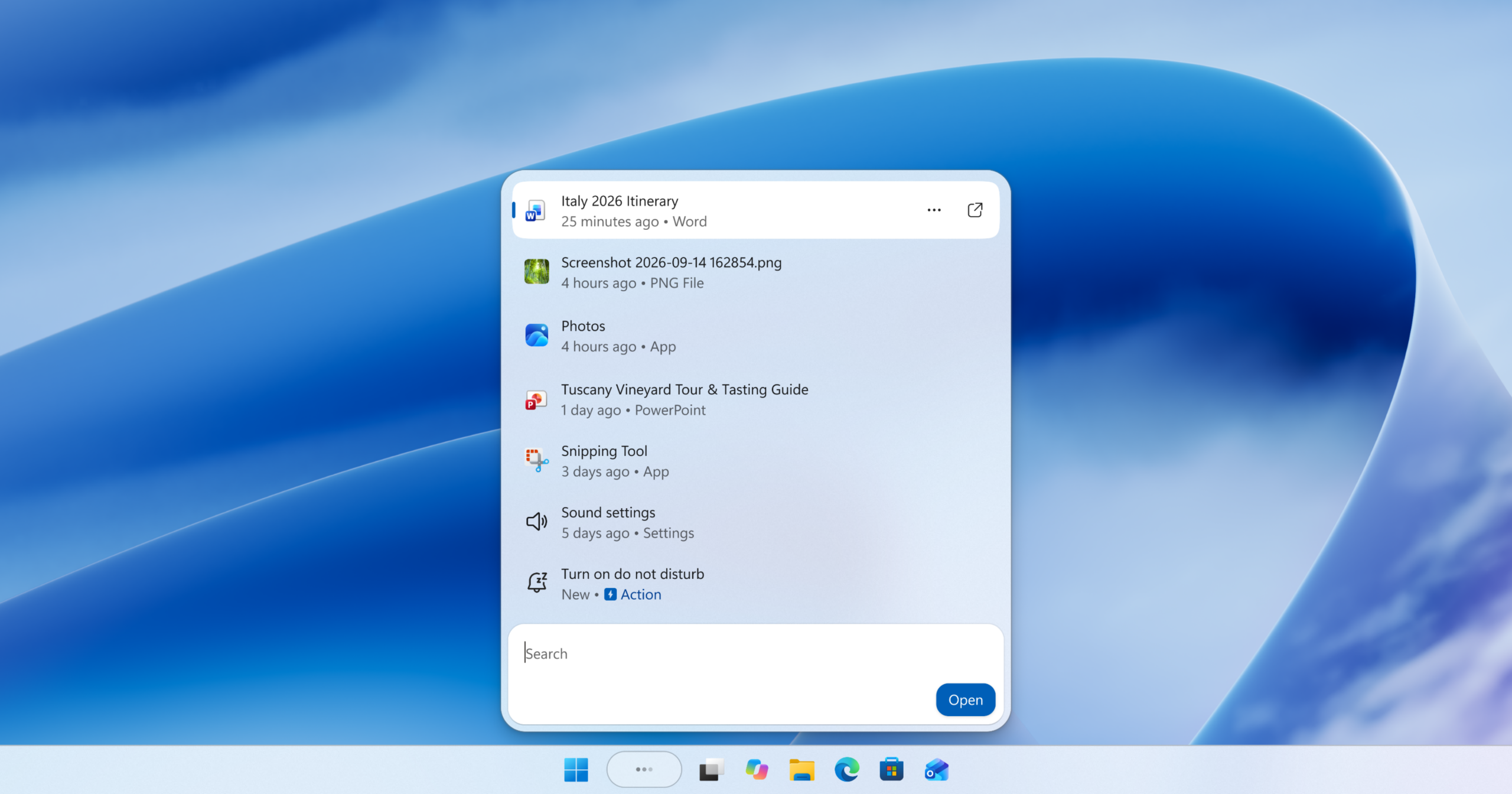
The new Windows Search, announced for the Windows Insider experimental channel, aims to simultaneously improve speed and reduce operational steps through a modernization of its foundation to WinUI 3 and consolidation into a single-pane UI. The biggest change is the introduction of "Inline Actions," which allow users to execute OS settings changes and window operations directly from the search box, going beyond simple file and application searches.
- Background and Objectives of the Windows Search Refresh
- Transition to WinUI 3 and Reconfiguration to a Single-Pane UI
- The Mechanism of "Inline Actions" to Advance from Search to Execution
- Improved search accuracy and rich preview features scheduled for later this year
- Target build for implementation and enabling procedure using feature flags
- Usage Precautions and Future Roadmap
- References
Background and Objectives of the Windows Search Refresh
Windows Search is widely used as a starting point for daily PC operations, such as launching applications, searching for files, and changing settings. On the other hand, users have continuously requested improvements regarding response times when displaying search results and the visual clutter encountered before reaching the desired item.
According to primary sources, Microsoft has been working on reducing noise since July 2026 by streamlining the search box and controlling the display of web and store suggestions, and this update is positioned as carrying out that policy from the foundational level. The main focus of this update is to transform the search function from a mere "searching" location into a "doing" starting point where tasks are completed directly.
Transition to WinUI 3 and Reconfiguration to a Single-Pane UI
The most significant architectural change in the new Windows Search is the renewal of the UI foundation to WinUI 3. Primary sources state that adopting a modern framework aims to improve perceived startup speed and increase memory footprint efficiency.
In addition, the UI layout has undergone a fundamental review. The conventional Windows Search was basically built on a two-pane structure, with a result list on the left and a detailed preview pane on the right. However, it has been reported that telemetry data analysis of user behavior revealed that nearly all user click operations were concentrated on the left-hand result list.
Based on this analytical data, the new design eliminates the large right-hand preview pane and consolidates it into a simple single-column list (single-pane display). By centralizing necessary information in one place, it suppresses eye movement and visual distraction, adopting a structure where target items can be identified instantly.
The Mechanism of "Inline Actions" to Advance from Search to Execution
The functional highlight of this update is "Inline Actions," which enable commands to be executed directly from the search box. This makes it possible to complete tasks within the search box without launching separate settings screens or dedicated applications.
Specific examples of inline actions introduced in the primary sources are as follows.
Toggling system settings on and off
"switch to dark mode"
"turn on night light"
"turn on Bluetooth"
Quick environment adjustments
Dim my screen
Mute volume
Organizing windows and workspaces
Minimize all my windows
Arrange windows on screen
Snap operations for side-by-side arrangement of applications such as Microsoft Edge and Microsoft Word
Furthermore, it is explained that future plans include the direct execution of smartphone integration features, such as sending text messages to devices linked via Phone Link.
Improved search accuracy and rich preview features scheduled for later this year
The search processing itself for user input has also been enhanced. Matching accuracy for typing errors and synonyms has been improved, and adjustments are underway to make it easier to reach target files and settings even with minor input variations.
In addition, the primary source states that the following expansions are planned for later this year.
Inline previews and detailed information
A feature to directly preview PowerPoint presentations, Word documents, image files, etc., within the search result list, making it easier to identify files with the same or similar names before opening them.Rich web inline answers
A feature to display answer cards without leaving the search screen for queries such as weather in San Diego, How tall is the Eiffel Tower?, and stock price information.Consolidation of category filters
A filter function to narrow down results while maintaining a single-pane layout when exploring categories such as files.
Target build for implementation and enabling procedure using feature flags
This feature has begun rolling out progressively to the Experimental channel of the Windows Insider Program. The supported language at the initial release is limited to English.
The target build and the procedure for checking feature flags described in the primary source are as follows.
Target build
Experimental channel: Build 26340.9616
Experimental (26H1) channel: Build 28120.3181
Configuration path for enablement
The configuration procedure for manually checking and enabling the feature flag is as follows.
Settings Open Settings.
Windows Update > Windows Insider Program > Feature flags Navigate to.
From the list New Windows Search Experience Select and enable.
According to the primary source, if the flag does not appear immediately after updating to the target build, users are advised to click "Check for updates" on the Windows Update screen and then reboot the device [Scheduled for verification in a Windows environment].
For submitting feedback, the specified destination is the Feedback Hub (Win + F) under the "Desktop Environment > Search" category.
Usage Precautions and Future Roadmap
When considering and verifying the new search UI, it is necessary to understand the differences and limitations compared to the current version.
Initial boundary conditions
Target area limitation: In the initial preview, only the taskbar search box is updated. When performing a search from the Start menu, the legacy search interface is displayed by design.
Language dependency: Since the initial release only supports English, further updates are required to support natural language input and inline actions in Japanese environments.
Phased rollout: Even if the target build is applied, it is not enabled immediately in all environments, and verification via feature flags may be required.
Future roadmap
Microsoft has stated that for the following year and beyond, it plans to integrate this new search experience into the Start menu as well, adapting it naturally to various taskbar positions and Windows configurations. Furthermore, strengthening integration with AI experiences such as Copilot is also in scope, and seamlessness between searching and execution is expected to progress gradually.
Administrators and power users planning deployment must assess the impact on their workflows while paying attention to specification changes and language localization trends during the preview period.
References
- From searching to doing: Building a faster, more streamlined Windows Search
![]() From searching to doing: Building a faster, more streamlined Windows SearchHello Windows Insiders,Search is one of the most familiar ways to get around a Windows PC. It is how you may open an app...blogs.windows.com
From searching to doing: Building a faster, more streamlined Windows SearchHello Windows Insiders,Search is one of the most familiar ways to get around a Windows PC. It is how you may open an app...blogs.windows.com